Mac Os 10.13 Vmware Image Download Updated
Mac Os 10.13 Vmware Image Download
The Apples macOS Sierra has approached high version which is chosen "macOS Loftier Sierra". Dissimilar usual this time again, the OS is innovatively designed and focused on core features. Except this, there are tons of major changes and enhanced graphics level like its ameliorate photos, 5k resolution, and file organization. These brillant features has attracted users and attempt them to install specially on PC. No worries, you tin practise it now, no need to look if y'all're on PC or Mac. If you lot are a Mac users, so you can download the macOS High Sierra 10.13 from App shop but if yous are PC user and then you lot've got the chance to practice it from the guide here. In our previous article, we downloaded the macOS High Sierra VMware Image. In this article, I'chiliad going to bear witness you how to install macOS High Sierra 10.13 on VMware in Windows 10, viii or 7.

Unlike before, this time, we're roofing every department of guiding users to go what they want from this commodity. As in our previous article, nosotros downloaded macOS High Sierra 10.13 simply. Now nosotros're going to install macOS High Sierra on VMware in Windows. Except information technology, following your comments, if you had problems or errors during installation, we volition comprehend and solve it if possible by u.s.a. in an article, stay on and enjoy.
Of import:Hey Folks, the next version of macOS is out, here's you can find and really download + install, with the complete guide.
Install macOS Loftier Sierra 10.13 on VMware in Windows
Before we get started, there are several points y'all need to make sure you take full-filled the requirements and accomplished the important notes from below.
Remember: Earlier we begin installation, make sure y'all accept enabled virtualization on your PC and VMware likewise. Here'due south how to exercise information technology:-
#Footstep i: Download & full-fil the requirements
Required System
- 2GB Memory(RAM)
- Number of Processors: 2
- Hard Deejay: 80GB
- Graphics retentivity: 256 MB
Want to requite a quick shot to Mojave? Here'southward how to do it really with step by footstep shots.

Required files to download
Google Drive (One Full):http://bit.ly/2vstWgr
Google Bulldoze (5 of 5):http://bit.ly/2vogTvx
Unlocker208:http://bit.ly/2uYuur7
VMware Workstation:http://fleck.ly/1izV0je
Fix Download Limit:http://scrap.ly/2f7JPlj
If yous wish to download macOS High Sierra latest version please use to link below ;
#Footstep 2: Extract & run the downloaded files
ane.Afterwards download, the files, extract them in a binder.

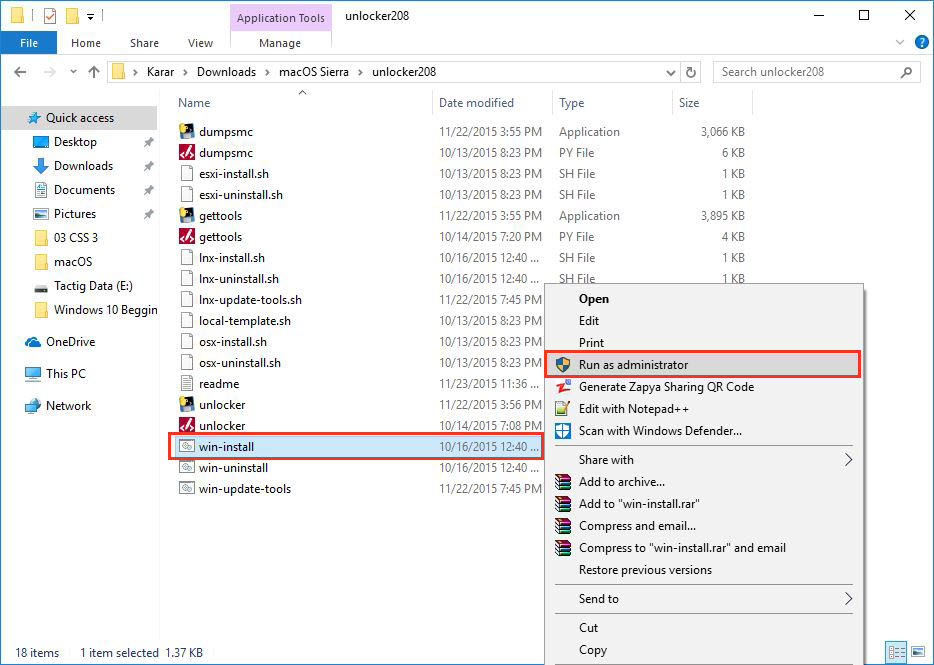
2.Now open Unlocker208 and open up " win-install" and Run as administrator.
#Step 3: Create a New Virtual Automobile in VMware
1. Open VMware Workstation and click on "Create a New Virtual Car" or simply press " Ctrl + Northward" to open New Virtual Motorcar Wizard. When opened, allow it past default and click Next.

2. On this folio, select "I will install the operating system later" and click Next.

3. Yes, you're right, select Apple Mac OS Ten and OS version and so hit Next.

iv.Personalize and select a preferredlocation for the virtual automobile and click Next.

5. Here specify the disk capacity by storing virtual disk as single file and 40 gig-byte for maximum disk size then keep installation by hittingNext.

vi.On the finish line, customize hardware if you want and become forFinish.

#Step 4: Configure & Edit the Virtual Automobile
i.When the virtual automobile created, y'all're ready to edit the VM, hit Edit virtual machine settings to continue.

2.Remove the existing hard disk drive by selecting the hard disk and click Remove.

three.Later on removing the hd, hitting Add on the Virtual Machine Settingsand follow the instructions from below.

iv.Here you lot need to selectuse an existing virtual deejay and clickNext.

5. Scan the MacOS High Sierra (VMDK) from the extracted folder that y'all had downloaded then clickF inishand so clickOk on virtual auto settings.

#Footstep 5: Edit the Virtual Machine & Insert Code
1.When you take finished configuration, now you need to edit the virtual motorcar and insert command from below. To do that navigate to virtual auto files and open "virtual machine configuration(VMX)" with Notepad like the shot below.

2.On the Notepad, insert the control below or you tin copy and paste from below.
smc.version = "0"

#Pace half dozen: Install macOS Loftier Sierra 10.13 on VMware
In one case you have completed the steps above, then y'all're able to install it right at present. To practice that, press the ability push to showtime the virtual machine. When the auto started, on the first screen you'll see the welcome folio, choose your country then clickGo on.
If you run into "Failed to open up a session for the virtual motorcar" or "VT-10 isn't available" you may check out this.

Now cull a keyboard layout and hitGo on.

SelectDon't transfer whatever information now and hit enter.

On this folio, sign in with your Apple tree ID otherwise select Don't sign in andGo on or if you don't take an Apple ID and want to create one here's how to do:-
How to Create an Apple ID Without a Credit Carte?

Read the Terms and atmospheric condition fully and clickAgree.

Step #eight: Personalize Your Mac
So let'southward personalize our reckoner past filling out the required details thenProceed.

This new express setup page works as location services and it will locate your location, Continue.

Now your account will exist create inside few minutes and you lot'll finally got it similar the shot beneath.

All right, now the only thing you need to do is installing VMware Tools which is very important.
that's all. Promise you could install without error and if you got any effect, identify it in comments form. We will respond as before long equally possible as well nosotros volition create another article based on your problems for other users if they got, so they can solve information technology rapidly. Stuck booting upwards or can't change the screen or do you lot have another trouble? No matter, here's the solution, click the link below and effort one the solution methods from the listing.
Notice that if you face up boot manager problem or any other problems, cheque out the step #iii and utilize the code without quotation marks or yous can try the whole tutorial once over again if over again not succeed, and then try to check your laptop/PC if it's not AMD, if it is then you can't do it or if your organization is Intel then become and bank check the steps conspicuously and check again or exercise information technology on another computer.
When the macOS High Sierra installed successfully, at present step through essential setting upwardly your Mac afterwards installation. Click the link beneath and follow the steps.
Searches related to macos high sierra vmware
high sierra vmwarefusion
vmwarefusion apfs
macos loftier sierra vmwarefusion
vmwarefusion tech preview
vmwareapfs
vmwarefusion 9 beta
install loftier sierra vmwarefusion
vmwaretools loftier sierra
Mac Os 10.13 Vmware Image Download
Posted by: orlandosquis1950.blogspot.com

